 |



|
#1
 Yesterday, 07:00 AM
|
||||
|
||||
 Five One UI 9 features you should try first
Samsung released the stable One UI 9 update for the Galaxy S26 series in Korea on September 16. A wider rollout should start from September 21, with devices such as the Galaxy S25 series scheduled to follow from September 28 in some markets.
One UI 9 includes numerous visual changes, AI improvements, and a handful of new features. WIth the update finally beginning to reach users, these are five additions worth trying first. Put Finder on the home screen One UI 9 can place Samsung Finder at the bottom of the home screen, saving you from opening the app drawer whenever you need to find something. Pinch the home screen, tap Settings, and select Show search on Home screen. You can enable Samsung Finder, Google Search, or both independently. 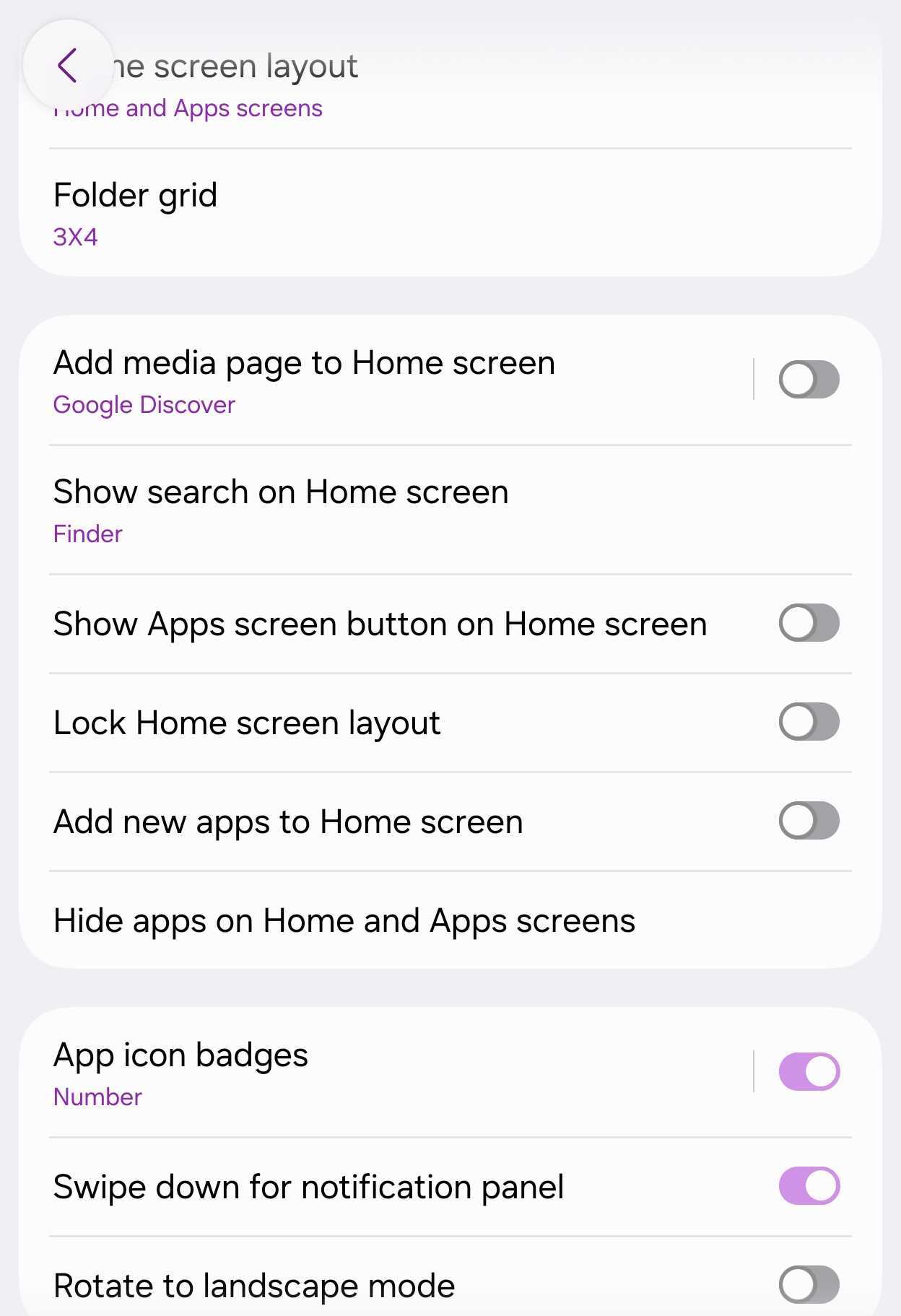 One UI 9.0 Home Finder settings | Source: Mihai Matei / SamMobile One UI 9.0 Home Finder settings | Source: Mihai Matei / SamMobile 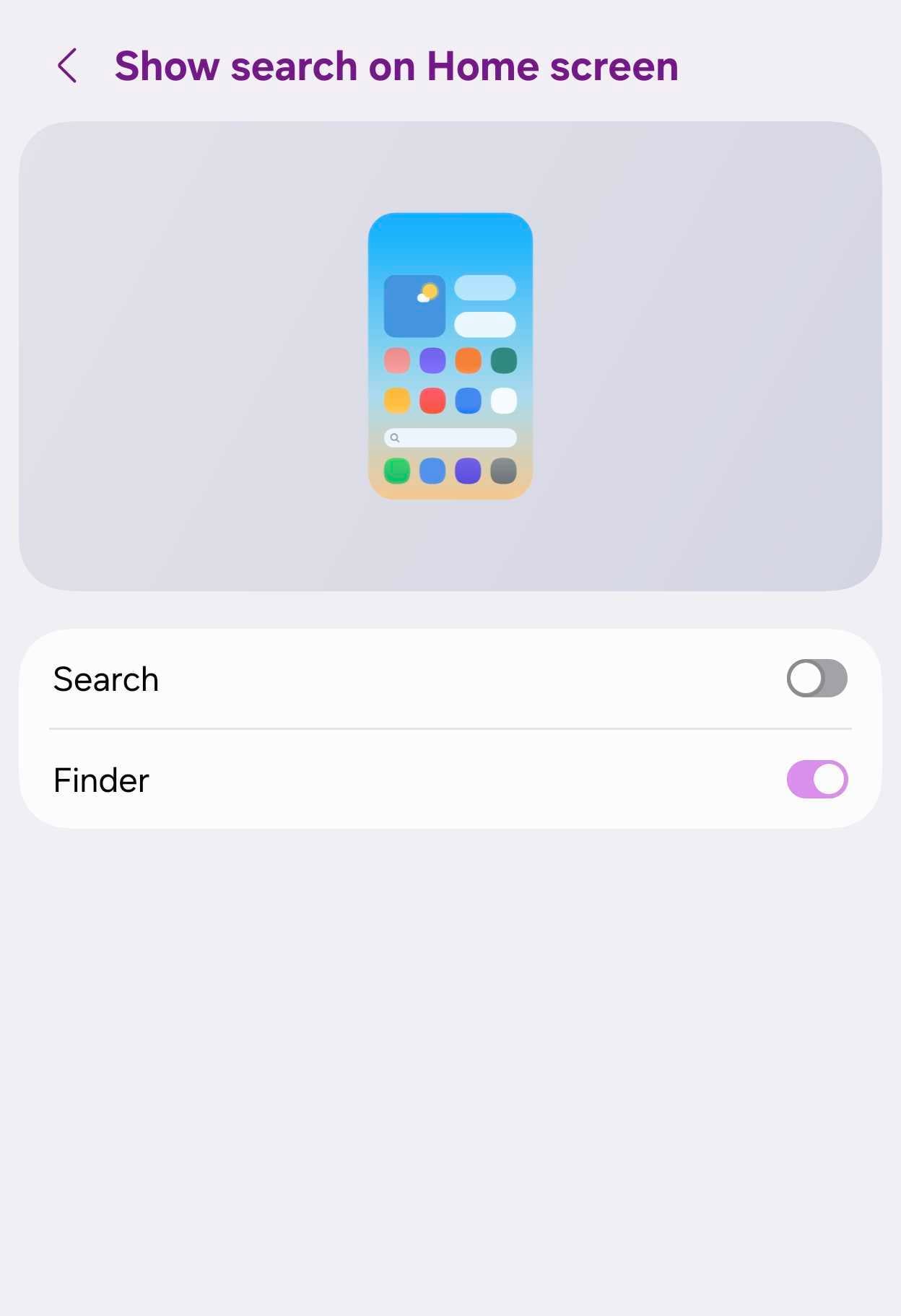 One UI 9.0 Home Finder settings | Source: Mihai Matei / SamMobile One UI 9.0 Home Finder settings | Source: Mihai Matei / SamMobile Google Search provides quick access to the web, while Finder searches the content stored on your phone. It can locate apps, contacts, settings, files, and Samsung Calendar entries. Finder and Google Search have separate bars when both are enabled. Disabling both restores the standard home screen page indicator. Rebuild the Quick Panel to suit your needs One UI 9 gives you considerable freedom to change the layout of the Quick Panel. Swipe down from the top-right corner of the display to open the complete Quick Panel, then tap the pencil-shaped edit button. You can move buttons and widgets, remove controls you rarely use, and place frequently accessed options where they are easier to reach. Samsung also lets you switch the brightness and volume sliders between horizontal and vertical orientations. The brightness slider, volume slider, and media player can be resized as well. 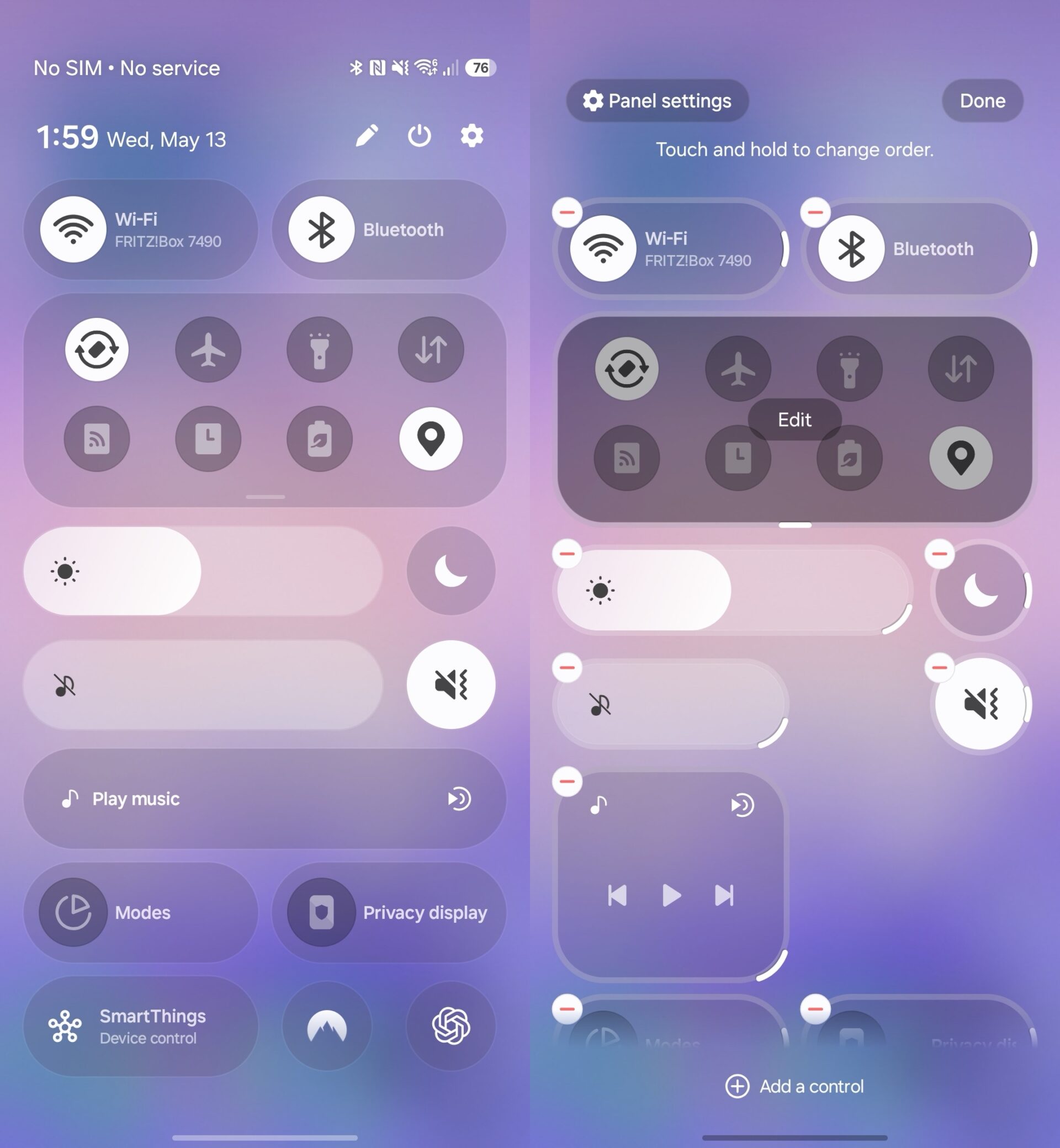 Quick Panel's editing options in One UI 9.0 | Source: Max Jambor / SamMobile Quick Panel's editing options in One UI 9.0 | Source: Max Jambor / SamMobile With all the options available, your ideal arrangement may take some experimentation. However, once you are finished, you should have a Quick Panel that puts your most frequently used controls exactly where you want them. Give someone their own fan cam My FanCam can take a video featuring several people and produce a new version that follows one person throughout the recording. It can be useful for videos recorded at concerts, sporting events, school performances, and other situations where your intended subject is surrounded by other people. My FanCam crops the video, follows the selected person as they move, and adjusts the framing to keep them near the center. Open a video in the Gallery app, tap the Galaxy AI button, and select My FanCam. Once the phone has analyzed the recording, select the person you want it to follow. You can then choose the videoâ??s orientation and aspect ratio before tapping Follow. If the phone cannot find anyone to track, use the seek bar to move to a part of the video where the people are more clearly visible and try again. My FanCam only works with human subjects and is available on flagship devices going back to the Galaxy S24 series. Create your own Now Brief cards Galaxy AI's Now Brief attempts to automatically show you useful information throughout the day, but the standard categories do not always show what you care about. One UI 9 addresses that with custom cards. You can create up to three cards based on weather, health, or videos and decide when they should appear. Samsung provides several suggested options, or you can enter your own prompt. For example, you can ask for a card showing your sleep and Energy Scores, weekly running activity, or step count. You can also make cards that recommend videos about a particular sport, player, or subject. 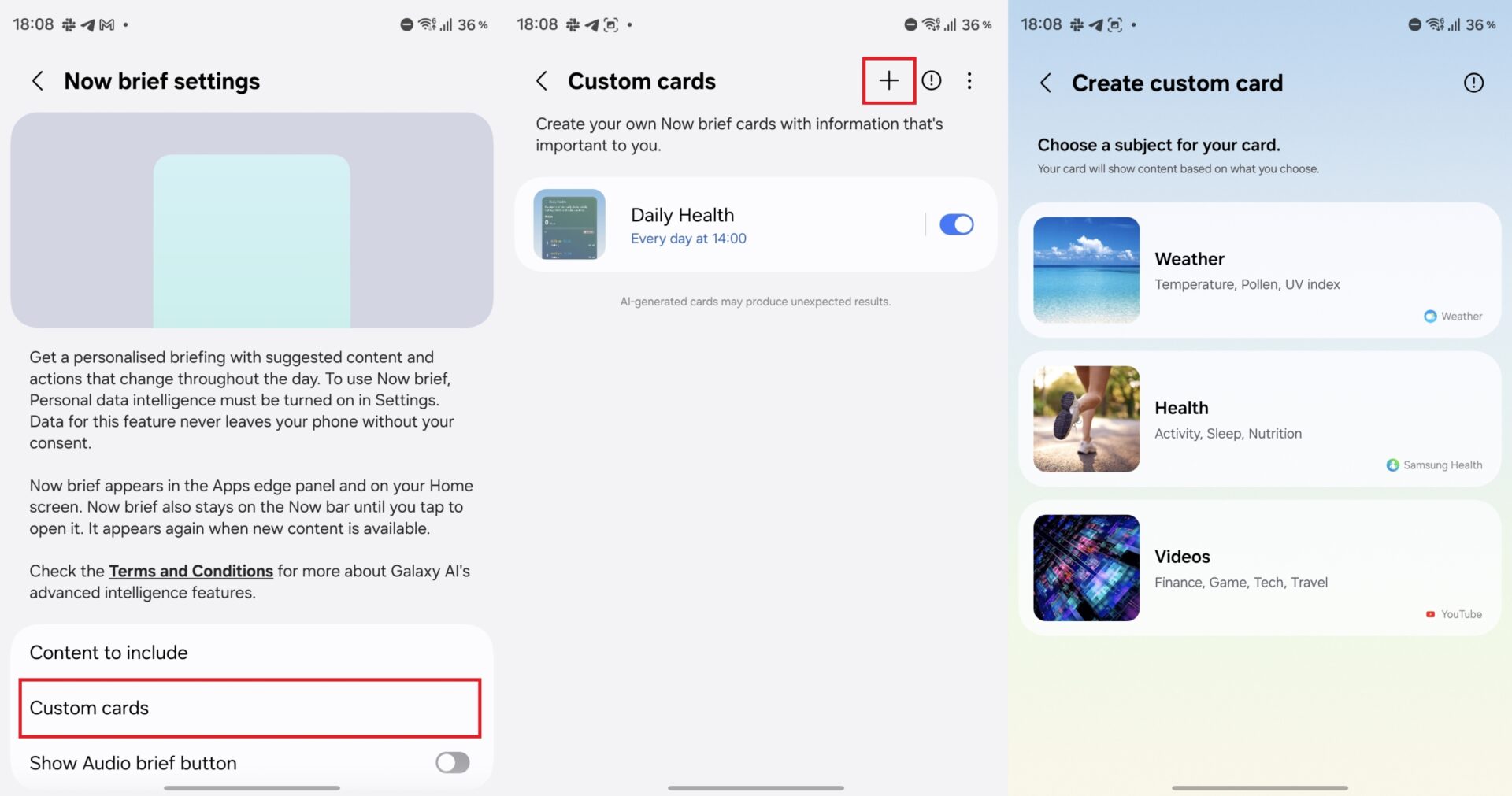 Creating Now Brief custom cards | Source: SamMobile Creating Now Brief custom cards | Source: SamMobile After entering a prompt, Now Brief checks it, generates a layout, and provides a preview. You can choose the days and times when the card should appear before saving it. Custom cards can be edited or deleted later. However, Samsung limits how many times you can generate or modify them each day. If you hit that limit, you will have to wait until the following day. Try Androidâ??s answer to Appleâ??s motion sickness feature Apple has offered Vehicle Motion Cues on iPhones for some time, and Android users have wanted something similar. Android 17 finally introduces an alternative called Motion Assist. Motion Assist displays moving shapes around the edges of the screen that react to the movement of your vehicle. These visual cues may reduce motion sickness when reading, browsing, or using apps while traveling. Search for Motion Assist in the Settings app. You can have it activate automatically in a moving vehicle or add a button to the Quick Panel for manual control. The colors, shapes, and visibility of the on-screen indicators can also be customized. Motion Assist is a Google feature delivered through Google Play services and requires Android 17, which Galaxy phones receive with One UI 9. Our complete guide explains how to enable and customize Motion Assist. More... 
|





  |
«
Previous Thread
|
Next Thread
»
| Currently Active Users Viewing This Thread: 1 (0 members and 1 guests) | |
|
|

All times are GMT -4. The time now is 02:18 AM.