 |



|
#1
 Today, 07:50 AM
|
||||
|
||||
 Hidden Galaxy Z Flip 8 feature turns your phone into a digital pocket mirro
Although all three Galaxy Z8 foldables share several fundamental characteristics, each model also stands out with one or two unique features that give it a more powerful identity.
For the Galaxy Z Flip 8, one of those features is Mirror view. It's available only for the Galaxy Z Flip 8, and the only reason you may have missed it is that it requires a separate Samsung app called Camera Assistant. Here's all you need to know. What is Mirror view on the Galaxy Z Flip 8? Mirror view turns the Flip 8's cover screen into a digital pocket mirror. There's not much else to it except for a couple of settings that you can't find in the usual Camera viewfinder and one that you can:
 Mirror view on the Flip 8 | Source: Abhijeet Mishra / SamMobile Mirror view on the Flip 8 | Source: Abhijeet Mishra / SamMobile 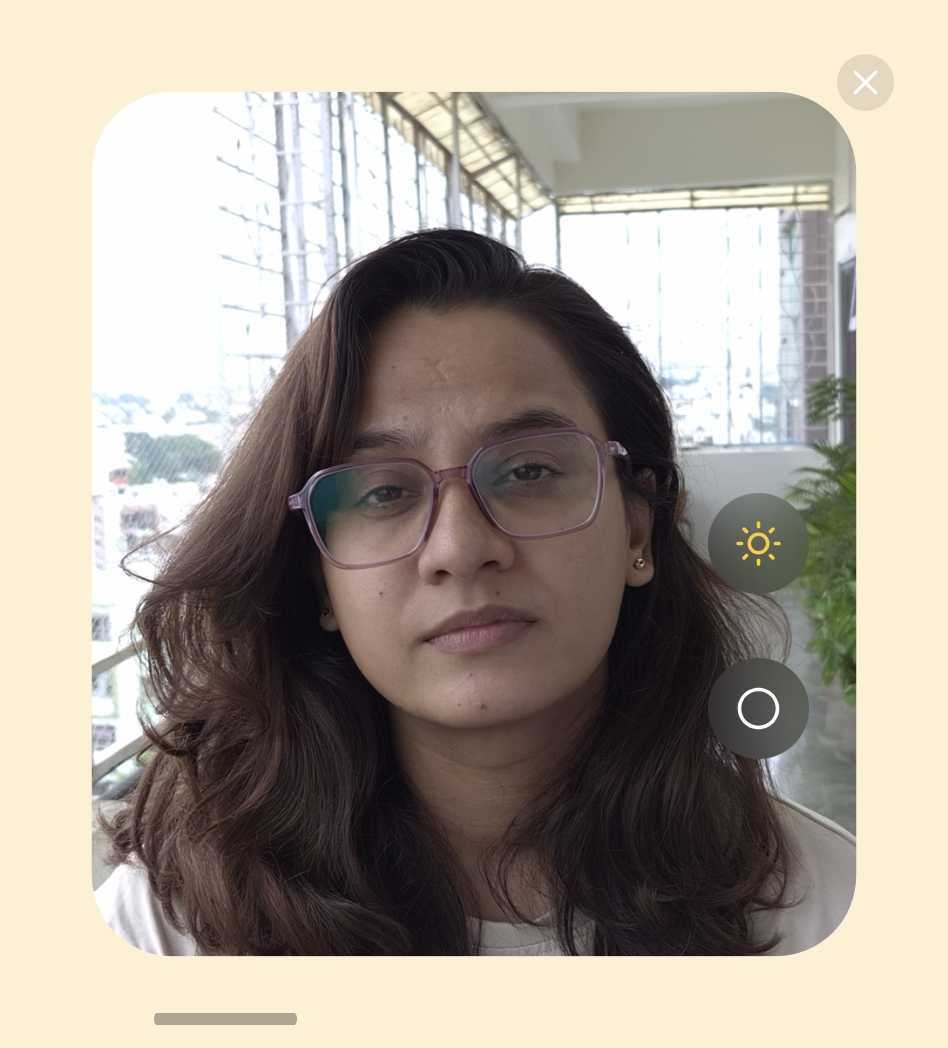 Mirror view with ring light enabled | Source: Abhijeet Mishra / SamMobile Mirror view with ring light enabled | Source: Abhijeet Mishra / SamMobile How do you enable Mirror view on the Flip? You'll need Samsung's Camera companion app, Camera Assistant. If it's not present on your Flip 8, you can download it:
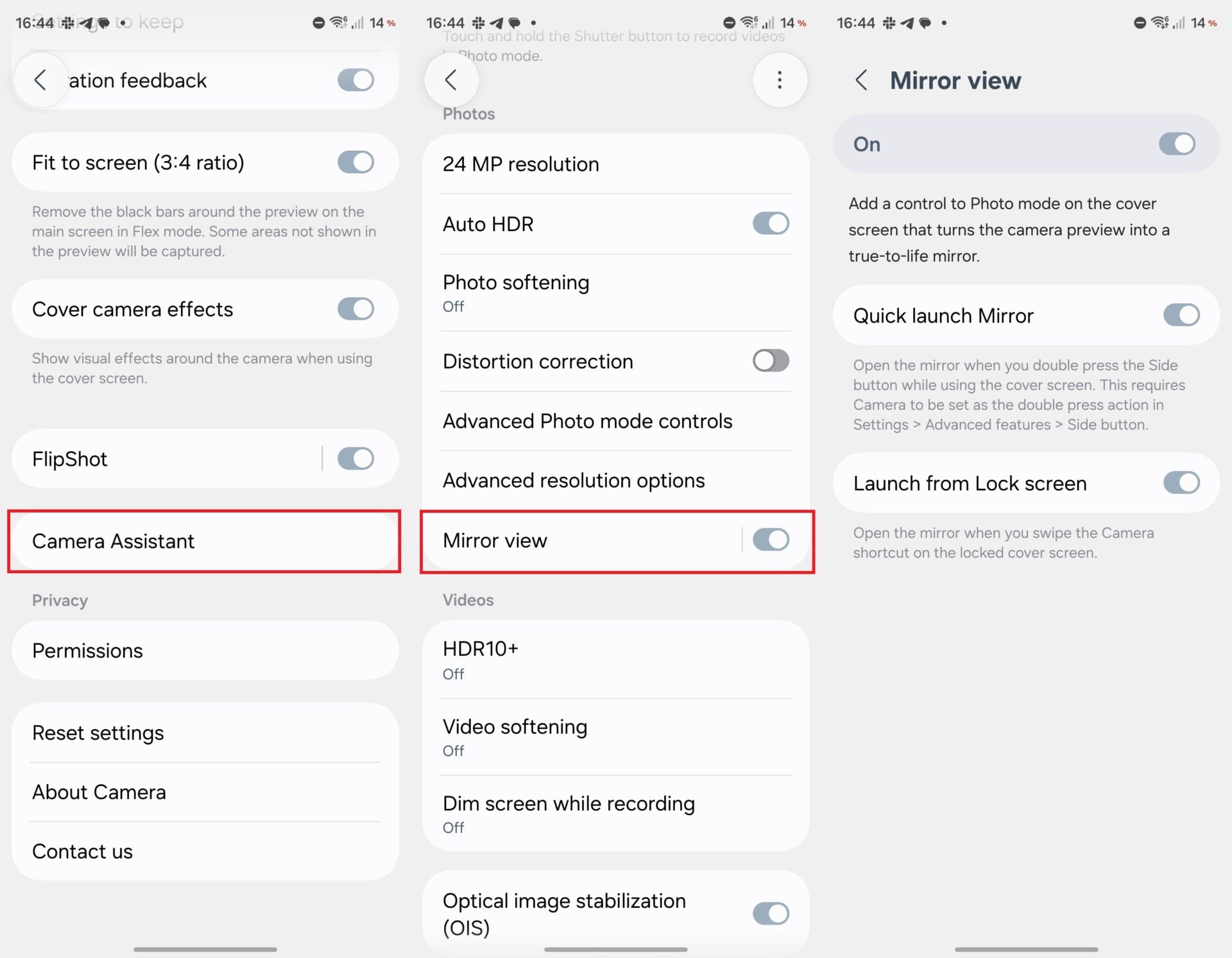 Steps to enable Mirror view | Source: Abhijeet Mishra / SamMobile Steps to enable Mirror view | Source: Abhijeet Mishra / SamMobile NOTE: Tapping Mirror view next to the toggle itself reveals a couple of extra options for launching Mirror view. For example, you can quickly launch Mirror view by double-pressing the side button or create a lock screen shortcut. How do you launch Mirror view to use the phone as a mirror? In total, there are three ways you can launch Mirror view:
One last trick: Mirror View also works perfectly fine with Flex Mode, so you can launch Mirror view, then partially unfold your Galaxy Z Flip 8, place it down, and use the feature hands-free. Browse Galaxy Z Flip 8 offers Samsung Shop More... 
|





  |
«
Previous Thread
|
Next Thread
»
| Currently Active Users Viewing This Thread: 1 (0 members and 1 guests) | |
|
|

All times are GMT -4. The time now is 01:18 PM.